An enterprise running 41,000 users through ServiceNow, with a major-incident process built up over a decade, can still end up with a help-desk agent calling down an on-call list one name at a time. ServiceNow already knows the priority, the assignment group, the SLA clock, the full history of the incident. It just can’t pick up the phone.
That gap between the record and the response is what this guide is about: what actually moves in each direction, how the integration gets connected, and where the response side does work ServiceNow was never built to do.
Table of Contents
- What Each System Is For
- Where One-Way Integrations Break
- Connecting the Two Platforms
- Following an Incident Through the Loop
- Routing Through Assignment Groups
- When It’s a Major Incident
- Setup Mistakes Worth Avoiding
- What Syncs Automatically vs. What Needs a Decision
- Timeline: What to Expect
- Conclusion
- FAQ
What Each System Is For
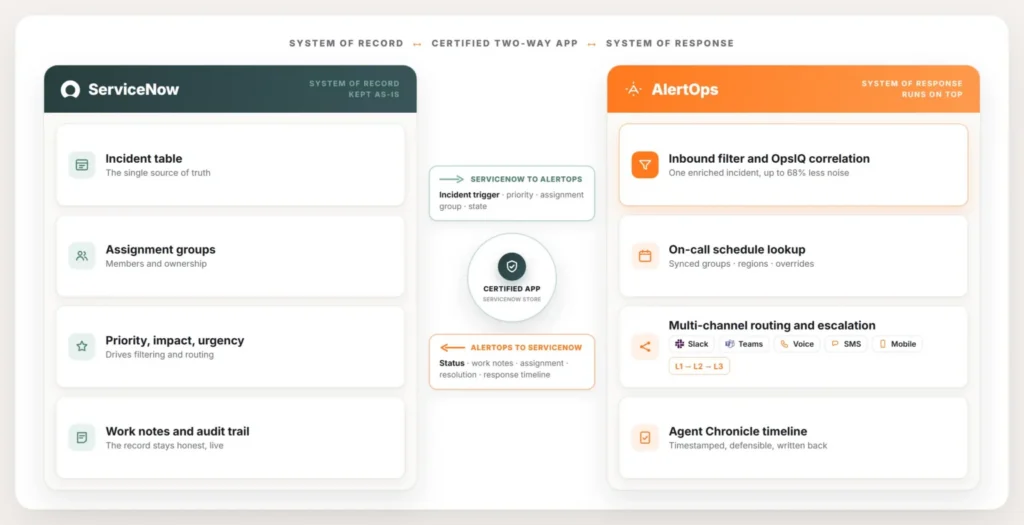
ServiceNow holds the incident, the assignment group, the change history, and the audit trail. Most enterprise ServiceNow teams have spent years making it the single source of truth, and they’ve paid for it. They want their people working inside it, not bouncing between five tools. That part of the setup doesn’t change.
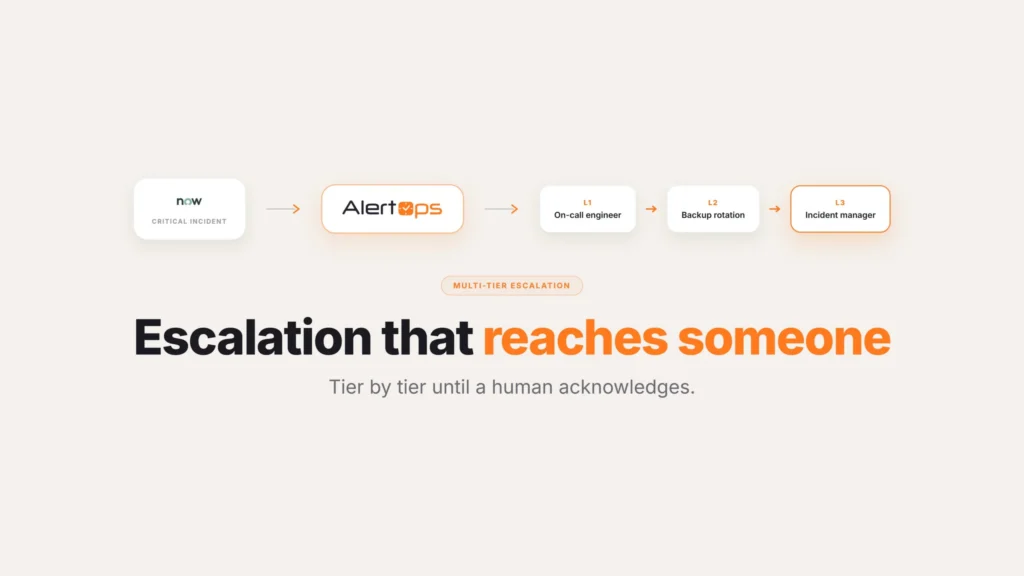
Response is a separate job. When something breaks badly, someone has to get reached on a channel they’ll actually answer, get escalated past if they go quiet, and be backed by a schedule that knows who’s on call right now, across time zones and overrides. ServiceNow logs the incident. Getting a human on the phone is where the record stops and a response tool takes over.
AlertOps is a certified app on the ServiceNow Store built for that second job, without changing anything about how ServiceNow itself works.
Where One-Way Integrations Break
A lot of ServiceNow integrations only go one direction. An incident is created, a webhook fires, a notification goes out, and that’s it. The problem shows up an hour later. The incident’s been acknowledged, escalated, and half-fixed in the other tool, but the ServiceNow record still says “new.” Now the record is wrong, any reporting built on top of it is wrong, and someone spends the next morning reconciling two timelines by hand.
Two-way integration fixes that. Move an incident in ServiceNow from in-progress to pending to resolved, and the alert in AlertOps should follow. Do the same thing from the AlertOps side, and ServiceNow should follow too. As long as both stay in sync while the incident is live, the record can actually be trusted.
Connecting the Two Platforms
The setup itself is short:
- Install the AlertOps app from the ServiceNow Store.
- Create an inbound integration in AlertOps to get a webhook URL.
- Point ServiceNow at that URL.
- Turn on write-back.
- Sync users and assignment groups.
That’s a single endpoint, not a custom build, and neither side needs extra integration users set up just to make this work. Because the app is certified, it’s already cleared ServiceNow’s security review, which matters to infrastructure-security teams at any regulated company before they’ll let something touch the instance.
The actual work isn’t the connection. It’s deciding which incidents should page, who they should reach, and what gets written back and that’s most of what’s left in this guide. You can see the app connect to a live instance at alertops.com/demo.
Before rolling this out to a full team, it’s worth running a handful of test incidents through the pipeline first. Create a low-priority test incident in a sandbox instance, confirm it fires an alert, acknowledge it in AlertOps, and check that the status and notes actually land back on the ServiceNow record. That takes fifteen minutes and catches most configuration mistakes before they show up during a real incident.
Following an Incident Through the Loop
Here’s what happens end to end. An incident opens in ServiceNow. If it matches the conditions you’ve set, it fires into AlertOps. Most teams filter on priority or impact, so a low-severity record nobody needs to wake up for just sits in the queue, while a P1 escalates right away. AlertOps reads the assignment group on the incident, finds who’s on call, and pages them across whatever channel they answer, with the incident details already attached.
From there it runs the other way. The acknowledgement shows up on the ServiceNow record. As the incident gets worked, status moves through in-progress and resolved, notes get written back as people type them, and a reassignment on either side shows up on the other. Close the incident, and it closes on both sides.
Two things about this are worth calling out on their own:
- AlertOps writes notes back in real time. It keeps the record live while the incident is happening, instead of the older way some tools handle it, where they copy notes over only at the end and leave the record blank the whole time the incident is actually hot.
- Closing stays in sync. Nobody resolves the same incident twice across two systems, and whatever reporting you build on top of this data actually holds up.
| Data | ServiceNow into AlertOps | AlertOps into ServiceNow |
| Incident creation | Triggers alert and on-call routing | Can create an incident from an alert |
| Priority / impact / assignment group | Drives filtering and routing | Reflects reassignment |
| Status / state | Maps to alert lifecycle | Writes acknowledged / in-progress / resolved |
| Work notes | Available as context | Written back in real time |
| Resolution / close | Closes the alert | Closes the incident (synchronized) |
| Users and assignment groups | Synced into AlertOps | On-call view surfaced in ServiceNow |
By default this writes to the Incident table. Teams running response through Problem, Change, or Event Management can extend it to those tables through the app’s business rules. Two other questions come up almost immediately once this is live: which incidents should actually page someone, and how to stop one outage from generating fifty separate tickets. Both are worth working out early, since they change how much noise the on-call team deals with once this is running.
Routing Through Assignment Groups
Routing only works as well as the data behind it, and in ServiceNow that data is the assignment group. AlertOps pulls those groups and their members from the instance, so a page goes to whoever’s actually on call right now, across regions and overrides, instead of a static list someone updates every few months. The routing checks the incident’s group, its priority, and whatever else you’ve configured, sends the page, and escalates if the first person doesn’t respond.
Getting this wrong is expensive. A page sent to the wrong assignment group lands with a team that has no context for the incident, and the clock keeps running while someone figures out the mistake.
Teams that want to keep scheduling inside ServiceNow can do that too. AlertOps surfaces an on-call view inside the instance, showing primaries, secondaries, and overrides, so people who live in ServiceNow can check who’s on call without switching tools. Whether schedules should ultimately live in ServiceNow or AlertOps depends mostly on where the team already spends its day.
You can watch assignment-group sync and routing run against a live instance at alertops.com/demo.
When It’s a Major Incident
Major incidents get a shorter path. From inside a ServiceNow incident, a responder can fire an AlertOps alert directly, pull in the right people and groups, apply a message template, and reach a whole team at once instead of calling them one by one. A bridge can open automatically and go out with the page, so people join with one tap instead of hunting down a link in Slack.
Automating that handoff completely so the page fires the moment a P1 gets declared instead of waiting on a person to notice is usually something teams add a few weeks in, once they trust the base routing and want to cut the last manual step out entirely.
Setup Mistakes Worth Avoiding
A few things trip up teams during rollout, and none of them are complicated to fix once you know to look for them.
Paging on every incident. Turning this on with no filtering means every severity-five ticket wakes someone up along with the real P1s. Set priority and impact filters before the integration goes live, not after the first week of complaints.
Skipping the assignment-group audit. If a group in ServiceNow has stale members, or a group that’s been renamed but never cleaned up, the sync will carry that mess straight into AlertOps. Check the groups before syncing, not after a page goes to someone who left the team six months ago.
Leaving write-back off during testing. Some teams turn on the alert trigger first, run it for a week, and only enable write-back later. That’s backwards. Testing without write-back means you can’t confirm the loop is actually closing, which is the entire point of a two-way integration.
Not deciding who owns escalation timing. ServiceNow doesn’t have an opinion on how long to wait before escalating past someone. If nobody sets that in AlertOps, it defaults to whatever’s already configured, which may not match how the team actually wants a major incident handled.
Treating the rollout as a one-time task. Assignment groups change, teams get reorganized, and priority definitions shift as a company’s incident process matures. An integration set up correctly on day one can quietly drift out of date a year later if nobody revisits the filters and group mappings. Put a recurring check on the calendar, even if it’s just once a quarter, to confirm the sync still matches how the team actually operates.
What Syncs Automatically vs. What Needs a Decision
Connecting the two platforms is mechanical. Making the integration actually useful depends on decisions a tool can’t make on its own.
| Handled by the integration | Needs a decision from your team |
| Webhook connection and write-back | Which priority and impact combinations should page |
| Assignment group and member sync | Whether Problem, Change, or Event records also need write-back |
| Status and work-note write-back | Where on-call schedules should be maintained long-term |
| Synchronized close | Escalation timing and channel order for each team |
| On-call view surfaced in ServiceNow | Whether major-incident bridges open automatically or on request |
Most of the actual setup time in a real rollout goes into the right-hand column, not the left.
Timeline: What to Expect
The technical part installing the app, generating the webhook, syncing groups takes under an hour for most teams. Working out the filtering rules, the escalation policies, and which tables beyond Incident need write-back takes longer, usually spread across the first one to two weeks, as teams watch a handful of real incidents move through the loop and adjust as they go.
Conclusion
If ServiceNow is your system of record and your response still depends on someone finding and calling the on-call engineer by hand, this integration closes that gap without moving you off ServiceNow. The record stays exactly where it is. The response side gains a layer that pages reliably, escalates on its own, and writes the whole story back into the incident it started from.
Book a demo at alertops.com/demo and walk through the integration against your own incident workflow.
Frequently asked questions
Does AlertOps integrate with ServiceNow both ways?
Yes. ServiceNow incidents trigger AlertOps alerts and on-call escalation, and AlertOps writes status, work notes, assignment changes, and resolution back to the ServiceNow incident in real time, including synchronized close.
Is AlertOps a certified ServiceNow app?
Yes. ServiceNow lists it as a certified app on the ServiceNow Store, and it has already passed ServiceNow’s security and certification review. You install it from the marketplace and connect it through one webhook URL, not a custom build.
Does AlertOps replace ServiceNow?
No. ServiceNow stays the system of record. AlertOps runs on top of it, handling on-call scheduling, multi-channel paging, escalation, and the written-back response timeline. Neither one is trying to do the other’s job.
Can I control which ServiceNow incidents create alerts?
Yes. You filter on fields like priority, impact, and assignment group, and map incident state to the alert lifecycle. Low-severity records can stay out of the paging path entirely, and routine status or note updates don’t have to trigger anything.
Does AlertOps sync ServiceNow assignment groups?
Yes. Groups and their members sync from ServiceNow, and incidents route to whoever’s on call in the right group, so the routing data doesn’t depend on someone updating a spreadsheet.
What happens if ServiceNow and AlertOps disagree on an incident’s status?
This shouldn’t happen under normal operation, since write-back keeps both sides synchronized as the incident moves. If it does usually from a misconfigured filter or a manual edit made on one side without the sync catching it the ServiceNow record is the one to trust, since it’s the system of record. Worth checking the integration logs in AlertOps to see where the sync broke.
Do I need a developer to set this up?
No. The steps are: install the certified app, generate a webhook, point ServiceNow at it, turn on write-back, sync users and groups. Most of the setup time after that goes into deciding filtering and escalation rules, which is a process conversation, not a coding one.