No two enterprise ServiceNow instances look alike. Years of customization, custom fields, business rules, and process built around the way one organization actually runs ITIL leave the platform shaped to the shop. So when an alerting tool integrates only with the Incident table, it fits the demo and misses the instance. The moment the work touches a problem record, a change window, or an inbound event, the integration runs out of road.
This guide covers why incident-only integrations fall short at customized shops, what each table mapping does, how business rules keep it configurable, and how a change window stops paging anyone. For the full picture, start with the AlertOps and ServiceNow two-way integration guide.
Table of Contents
- Why a One-Table Integration Falls Short
- What Each Table Mapping Does
- Where Each Table Fits at a Glance
- How Business Rules Keep It Configurable
- The Change Window That Stops Paging Anyone
- Conclusion
- FAQ
Why a One-Table Integration Falls Short
The Incident table is where most alerting tools stop, and for a clean demo that’s enough. A signal comes in, an incident opens, someone gets paged, the incident closes. It looks complete because the demo instance is empty. The trouble starts when the integration meets a real instance that’s been running ITIL for a decade.
Enterprises don’t treat incidents, problems, and changes as the same thing, because ITIL doesn’t. An incident is the thing that’s broken right now. A problem is the underlying cause behind a pattern of incidents. A change is planned work that might break something on purpose. Each lives in its own table, each has its own lifecycle and its own business rules, and the work of a real operations team moves between them constantly. An integration that can only write incidents can only ever describe one third of that picture.
That gap isn’t cosmetic. When a planned change generates the same alerts as a failure, an incident-only tool pages the on-call engineer for approved work, because it has no view of the change calendar to know better. When the same incident opens for the fifth time this month, an incident-only tool opens a fifth incident and never connects it to the problem record that would explain why. The instance has the structure to handle all of this. The integration just can’t reach it.
What Each Table Mapping Does
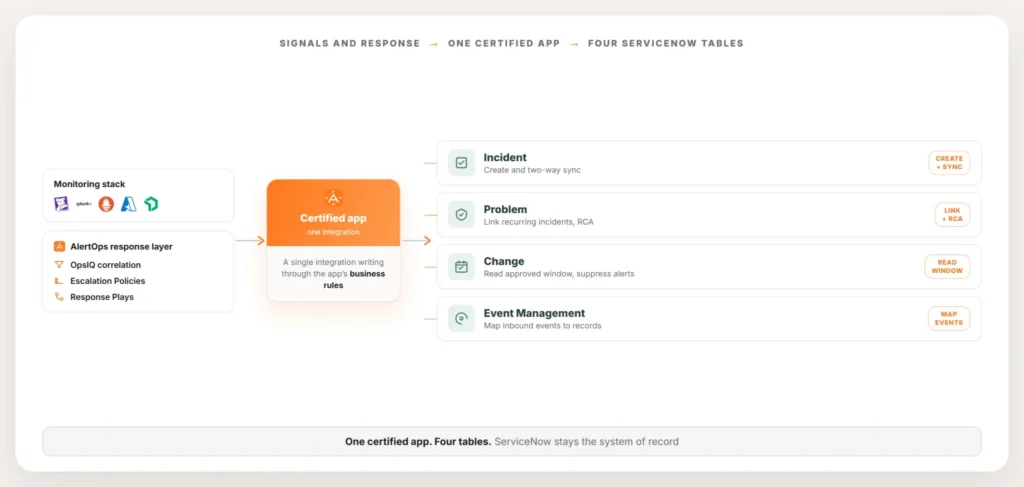
AlertOps writes to four tables through its certified app, and each mapping does a specific job. The point isn’t to write everywhere for its own sake. It’s to put the right object in the right place so ServiceNow stays accurate and the response stays fast.
The Incident table is the foundation and works out of the box. AlertOps creates the incident, routes it to the on-call members of the right assignment group, and keeps it in two-way sync: status, assignment, notes, and resolution move in both directions in real time, so closing the work in either system closes it in both.
The Problem table is where recurring pain gets a home. When an incident is one of a recurring set, the app can link it to a problem record so the pattern is visible as a pattern, not as a pile of unrelated tickets. Root cause analysis then has something to attach to, and the responder working tonight’s incident can see that it belongs to a known problem already under investigation. ServiceNow owns the problem lifecycle. AlertOps makes sure the incident it creates lands in that lifecycle instead of beside it.
The Change table is what turns planned work from a paging event into a quiet one. The app can read an approved change window and use it to suppress or down-rank the alerts that fall inside it, so a deployment approved weeks ago doesn’t wake anyone at 2 a.m.
Event Management is the inbound side. Where a shop runs ITOM Event Management, inbound events can map to the right records on the way in rather than every signal defaulting to a raw incident. The mapping decides what an event becomes, so the queue reflects the kind of signal it actually is.
One detail matters across all four: AlertOps writes to these ITSM tables through the app’s business rules. It doesn’t read or write the CMDB. Change and maintenance windows are a use case the integration supports, and ServiceNow remains the source of truth for the configuration data behind them.
Where Each Table Fits at a Glance
| Table | What it captures | What AlertOps does with it |
| Incident | The thing that’s broken right now | Creates it, routes it, keeps it in two-way sync |
| Problem | The underlying cause behind a pattern of incidents | Links recurring incidents so root cause analysis has something to attach to |
| Change | Planned work that might break something on purpose | Reads the approved window to suppress or down-rank expected alerts |
| Event Management | Raw inbound signals before they become a record | Maps each signal to the right table instead of defaulting to Incident |
How Business Rules Keep It Configurable
The reason a four-table integration can survive contact with a customized instance is that the writing happens through ServiceNow’s own business rules, not through hard-coded field mappings buried in an external tool.
Business rules are where a ServiceNow instance encodes how it actually works: which field means what, which transitions are allowed, what has to be true before a record can move forward. Because the certified app writes through that layer, the integration inherits the instance’s logic instead of fighting it. A custom field that one shop added years ago is just another field the rule can populate. A required value another shop enforces on every change is a condition the rule respects.
That’s the difference between an integration that demos well and one that holds up in production. A rigid mapping breaks the first time it meets a field it didn’t expect, which at a customized enterprise is immediately. Rules that run inside ServiceNow flex with the customization, so the same app fits a clean instance and a heavily modified one without a rebuild.
The Change Window That Stops Paging Anyone
Here’s the case that makes the whole thing concrete. A team has an approved change scheduled for Saturday night, a database migration signed off through the normal process. The migration does exactly what migrations do: it takes services offline, throws connection errors, and trips every threshold the monitoring stack watches. Those are the same signals a real outage produces.
An incident-only integration can’t tell the two apart. It sees failure signals, it opens incidents, it pages the on-call engineer for work that was approved a week ago. The engineer wakes up, checks, realizes it’s the planned change, and goes back to bed, having learned nothing and lost sleep. Do that a few weekends running and the team starts ignoring pages during change windows, which is exactly when a change going wrong most needs a real one.
With the Change table in the loop, the app reads the approved window and suppresses or down-ranks the alerts that fall inside it. The migration runs, the expected noise stays quiet, and nobody gets paged for approved work. A signal that doesn’t match the change, something genuinely unexpected during the window, can still break through, so a change going sideways isn’t masked. The result is the distinction the on-call team actually needs: silence for the planned, a page for the real.
This is also where AlertOps and ServiceNow divide the labor cleanly. ServiceNow holds the change record and the approval. AlertOps reads that approved window and acts on it at the alerting layer, where the paging decision lives.
Conclusion
The gap between an incident-only integration and one that reaches Problem, Change, and Event Management isn’t a matter of features on a comparison sheet. It’s the difference between a tool that works in a demo and one that survives a decade of customization, because the demo doesn’t have recurring incidents, approved change windows, or ITOM event feeds to trip over. Once those show up, and at any real enterprise they will, the integration either already knows how to read them or it starts generating noise the team has to work around by hand.
Upstream, OpsIQ correlation collapses duplicate signals before they ever reach a table, so what gets written across all four is already clean rather than a flood of near-identical events. For how that correlation works, see alert correlation before ServiceNow, and for the record every write leaves behind, see the ServiceNow incident audit trail.
Book a demo at alertops.com/demo to see AlertOps write to the Problem, Change, and Event tables in your own ServiceNow instance.
Frequently asked questions
Can an alerting tool write to the ServiceNow Problem and Change tables, not just Incident?
Yes. AlertOps creates and syncs incidents out of the box, and through its certified app’s business rules it also writes to the Problem, Change, and Event Management tables. A recurring incident can link to a problem record for root cause analysis, an approved change window can suppress the alerts that would otherwise page someone, and inbound events can map to the right records.
How do I stop ServiceNow alerts from paging during an approved change window?
Put the Change table in the loop. The AlertOps certified app reads the approved change window. It suppresses or down-ranks the alerts that fall inside that window. Planned maintenance no longer pages the on-call team for work someone already approved. A genuinely unexpected signal during the window can still break through.
Does AlertOps read or write the ServiceNow CMDB?
No. AlertOps writes to ITSM tables, the Incident, Problem, Change, and Event Management tables, through the certified app’s business rules. Change and maintenance windows are a supported use case, and ServiceNow stays the source of truth for the configuration data behind them.
Why does writing through business rules matter for a customized instance?
Custom fields, allowed transitions, and required values all live in a ServiceNow instance’s business rules. Writing through that layer means the integration inherits the instance’s logic instead of fighting it, which is why it holds up whether the instance is close to default or heavily reshaped over the years.
How does linking an incident to a problem record help with root cause analysis?
Without the link, three occurrences of the same failure show up as three isolated tickets. Whoever investigates has to spot the pattern first, before anyone looks at the real cause. Linking those incidents to one problem record builds the connection the moment the second or third one opens. The investigation then starts from everything related, instead of starting from scratch each time.